Automate your music collection
Use Platypush to manage your music activity, discovery playlists and be on top of new releases.

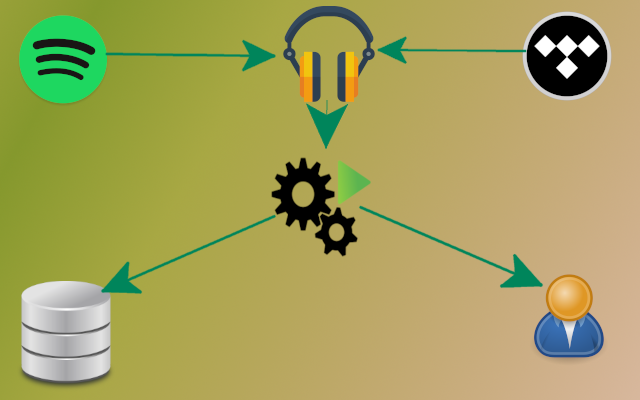
I have been an enthusiastic user of mpd and mopidy for nearly two decades. I have already written an article on how to leverage mopidy (with its tons of integrations, including Spotify, Tidal, YouTube, Bandcamp, Plex, TuneIn, SoundCloud etc.), Snapcast (with its multi-room listening experience out of the box) and Platypush (with its automation hooks that allow you to easily create if-this-then-that rules for your music events) to take your listening experience to the next level, while using open protocols and easily extensible open-source software.
There is a feature that I haven't yet covered in my previous articles, and that's the automation of your music collection.
Spotify, Tidal and other music streaming services offer you features such as a Discovery Weekly or Release Radar playlists, respectively filled with tracks that you may like, or newly released tracks that you may be interested in.
The problem is that these services come with heavy trade-offs:
-
Their algorithms are closed. You don't know how Spotify figures out which songs should be picked in your smart playlists. In the past months, Spotify would often suggest me tracks from the same artists that I had already listened to or skipped in the past, and there's no transparent way to tell the algorithm "hey, actually I'd like you to suggest me more this kind of music - or maybe calculate suggestions only based on the music I've listened to in this time range, or maybe weigh this genre more".
-
Those features are tightly coupled with the service you use. If you cancel your Spotify subscription, you lose those smart features as well. Companies like Spotify use such features as a lock-in mechanism - you can check out any time you like, but if you do then nobody else will provide you with their clever suggestions.
After migrating from Spotify to Tidal in the past couple of months (TL;DR: Spotify f*cked up their developer experience multiple times over the past decade, and their killing of libspotify without providing any alternatives was the last nail in the coffin for me) I felt like missing their smart mixes, discovery and new releases playlists - and, on the other hand, Tidal took a while to learn my listening habits, and even when it did it often generated smart playlists that were an inch below Spotify's. I asked myself why on earth my music discovery experience should be so tightly coupled to one single cloud service. And I decided that the time had come for me to automatically generate my service-agnostic music suggestions: it's not rocket science anymore, there's plenty of services that you can piggyback on to get artist or tracks similar to some music given as input, and there's just no excuses to feel locked in by Spotify, Google, Tidal or some other cloud music provider.
In this article we'll cover how to:
- Use Platypush to automatically keep track of the music you listen to from any of your devices;
- Calculate the suggested tracks that may be similar to the music you've recently listen to by using the Last.FM API;
- Generate a Discover Weekly playlist similar to Spotify's without relying on Spotify;
- Get the newly released albums and single by subscribing to an RSS feed;
- Generate a weekly playlist with the new releases by filtering those from artists that you've listened to at least once.
Ingredients
We will use Platypush to handle the following features:
- Store our listening history to a local database, or synchronize it with a scrobbling service like last.fm.
- Periodically inspect our newly listened tracks, and use the last.fm API to retrieve similar tracks.
- Generate a discover weekly playlist based on a simple score that ranks suggestions by match score against the tracks listened on a certain period of time, and increases the weight of suggestions that occur multiple times.
- Monitor new releases from the newalbumreleases.net RSS feed, and create a weekly Release Radar playlist containing the items from artists that we have listened to at least once.
This tutorial will require:
- A database to store your listening history and suggestions. The database initialization script has been tested against Postgres, but it should be easy to adapt it to MySQL or SQLite with some minimal modifications.
- A machine (it can be a RaspberryPi, a home server, a VPS, an unused tablet etc.) to run the Platypush automation.
- A Spotify or Tidal account. The reported examples will generate the
playlists on a Tidal account by using the
music.tidalPlatypush plugin, but it should be straightforward to adapt them to Spotify by using themusic.spotifyplugin, or even to YouTube by using the YouTube API, or even to local M3U playlists.
Setting up the software
Start by installing Platypush with the Tidal, RSS and Last.fm integrations:
[sudo] pip install 'platypush[tidal,rss,lastfm]'
If you want to use Spotify instead of Tidal then just remove tidal from the
list of extra dependencies - no extra dependencies are required for the
Spotify
plugin.
If you are planning to listen to music through mpd/mopidy, then you may also
want to include mpd in the list of extra dependencies, so Platypush can
directly monitor your listening activity over the MPD protocol.
Let's then configure a simple configuration under ~/.config/platypush/config.yaml:
music.tidal:
  # No configuration required

# add its credentials here
# music.spotify:
#   client_id: client_id
#   client_secret: client_secret

lastfm:
  api_key: your_api_key
  api_secret: your_api_secret
  username: your_user
  password: your_password

# Subscribe to updates from newalbumreleases.net
rss:
  subscriptions:
    - https://newalbumreleases.net/category/cat/feed/

# Optional, used to send notifications about generation issues to your
# mobile/browser. You can also use Pushbullet, an email plugin or a chatbot if
# you prefer.
ntfy:
  # No configuration required if you want to use the default server at
  # https://ntfy.sh

# Include the mpd plugin and backend if you are listening to music over
# mpd/mopidy
music.mpd:
  host: localhost
  port: 6600

backend.music.mopidy:
  host: localhost
  port: 6600
Start Platypush by running the platypush command. The first time it should
prompt you with a tidal.com link required to authenticate your user. Open it in
your browser and authorize the app - the next runs should no longer ask you to
authenticate.
Once the Platypush dependencies are in place, let's move to configure the database.
Database configuration
I'll assume that you have a Postgres database running somewhere, but the script below can be easily adapted also to other DBMS's.
Database initialization script:
-- New listened tracks will be pushed to the tmp_music table, and normalized by
-- a trigger.
drop table if exists tmp_music cascade;
create table tmp_music(
    id          serial not null,
    artist      varchar(255) not null,
    title       varchar(255) not null,
    album       varchar(255),
    created_at  timestamp with time zone default CURRENT_TIMESTAMP,
    primary key(id)
);

-- This table will store the tracks' info
drop table if exists music_track cascade;
create table music_track(
    id          serial not null,
    artist      varchar(255) not null,
    title       varchar(255) not null,
    album       varchar(255),
    created_at  timestamp with time zone default CURRENT_TIMESTAMP,
    primary key(id),
    unique(artist, title)
);

-- Create an index on (artist, title), and ensure that the (artist, title) pair
-- is unique
create unique index track_artist_title_idx on music_track(lower(artist), lower(title));
create index track_artist_idx on music_track(lower(artist));

-- music_activity holds the listened tracks
drop table if exists music_activity cascade;
create table music_activity(
    id          serial not null,
    track_id    int not null,
    created_at  timestamp with time zone default CURRENT_TIMESTAMP,
    primary key(id)
);

-- music_similar keeps track of the similar tracks
drop table if exists music_similar cascade;
create table music_similar(
    source_track_id   int not null,
    target_track_id   int not null,
    match_score       float not null,
    primary key(source_track_id, target_track_id),
    foreign key(source_track_id) references music_track(id),
    foreign key(target_track_id) references music_track(id)
);

-- music_discovery_playlist keeps track of the generated discovery playlists
drop table if exists music_discovery_playlist cascade;
create table music_discovery_playlist(
    id          serial not null,
    name        varchar(255),
    created_at  timestamp with time zone default CURRENT_TIMESTAMP,
    primary key(id)
);

-- This table contains the track included in each discovery playlist
drop table if exists music_discovery_playlist_track cascade;
create table music_discovery_playlist_track(
    id            serial not null,
    playlist_id   int not null,
    track_id      int not null,
    primary key(id),
    unique(playlist_id, track_id),
    foreign key(playlist_id) references music_discovery_playlist(id),
    foreign key(track_id) references music_track(id)
);

-- This table contains the new releases from artist that we've listened to at
-- least once
drop table if exists new_release cascade;
create table new_release(
    id serial not null,
    artist varchar(255) not null,
    album varchar(255) not null,
    genre varchar(255),
    created_at timestamp with time zone default CURRENT_TIMESTAMP,

    primary key(id),
    constraint u_artist_title unique(artist, album)
);

-- This trigger normalizes the tracks inserted into tmp_track
create or replace function sync_music_data()
    returns trigger as
$$
declare
    track_id int;
begin
    insert into music_track(artist, title, album)
        values(new.artist, new.title, new.album)
    on conflict(artist, title) do update
        set album = coalesce(excluded.album, old.album)
    returning id into track_id;

    insert into music_activity(track_id, created_at)
        values (track_id, new.created_at);

    delete from tmp_music where id = new.id;
    return new;
end;
$$
language 'plpgsql';

drop trigger if exists on_sync_music on tmp_music;
create trigger on_sync_music
    after insert on tmp_music
    for each row
    execute procedure sync_music_data();

-- (Optional) accessory view to easily peek the listened tracks
drop view if exists vmusic;
create view vmusic as
select t.id as track_id
     , t.artist
     , t.title
     , t.album
     , a.created_at
from music_track t
join music_activity a
on t.id = a.track_id;
Run the script on your database - if everything went smooth then all the tables should be successfully created.
Synchronizing your music activity
Now that all the dependencies are in place, it's time to configure the logic to store your music activity to your database.
If most of your music activity happens through mpd/mopidy, then storing your
activity to the database is as simple as creating a hook on
NewPlayingTrackEvent
events
that inserts any new played track on tmp_music. Paste the following
content to a new Platypush user script (e.g.
~/.config/platypush/scripts/music/sync.py):
# ~/.config/platypush/scripts/music/sync.py

from logging import getLogger

from platypush.context import get_plugin
from platypush.event.hook import hook
from platypush.message.event.music import NewPlayingTrackEvent

logger = getLogger('music_sync')

# SQLAlchemy connection string that points to your database
music_db_engine = 'postgresql+pg8000://dbuser:dbpass@dbhost/dbname'


# Hook that react to NewPlayingTrackEvent events
@hook(NewPlayingTrackEvent)
def on_new_track_playing(event, **_):
    track = event.track

    # Skip if the track has no artist/title specified
    if not (track.get('artist') and track.get('title')):
        return

    logger.info(
        'Inserting track: %s - %s',
        track['artist'], track['title']
    )

    db = get_plugin('db')
    db.insert(
        engine=music_db_engine,
        table='tmp_music',
        records=[
            {
                'artist': track['artist'],
                'title': track['title'],
                'album': track.get('album'),
            }
            for track in tracks
        ]
    )
Alternatively, if you also want to sync music activity that happens on other clients (such as the Spotify/Tidal app or web view, or over mobile devices), you may consider leveraging Last.fm. Last.fm (or its open alternative Libre.fm) is a scrobbling service compatible with most of the music players out there. Both Spotify and Tidal support scrobbling, the Android app can grab any music activity on your phone and scrobble it, and there are even browser extensions that allow you to keep track of any music activity from any browser tab.
So an alternative approach may be to send both your mpd/mopidy music activity, as well as your in-browser or mobile music activity, to last.fm / libre.fm. The corresponding hook would be:
# ~/.config/platypush/scripts/music/sync.py

from logging import getLogger

from platypush.context import get_plugin
from platypush.event.hook import hook
from platypush.message.event.music import NewPlayingTrackEvent

logger = getLogger('music_sync')


# Hook that react to NewPlayingTrackEvent events
@hook(NewPlayingTrackEvent)
def on_new_track_playing(event, **_):
    track = event.track

    # Skip if the track has no artist/title specified
    if not (track.get('artist') and track.get('title')):
        return

    lastfm = get_plugin('lastfm')
    logger.info(
        'Scrobbling track: %s - %s',
        track['artist'], track['title']
    )

    lastfm.scrobble(
        artist=track['artist'],
        title=track['title'],
        album=track.get('album'),
    )
If you go for the scrobbling way, then you may want to periodically synchronize your scrobble history to your local database - for example, through a cron that runs every 30 seconds:
# ~/.config/platypush/scripts/music/scrobble2db.py

import logging

from datetime import datetime

from platypush.context import get_plugin, Variable
from platypush.cron import cron

logger = logging.getLogger('music_sync')
music_db_engine = 'postgresql+pg8000://dbuser:dbpass@dbhost/dbname'

# Use this stored variable to keep track of the time of the latest
# synchronized scrobble
last_timestamp_var = Variable('LAST_SCROBBLED_TIMESTAMP')


# This cron executes every 30 seconds
@cron('* * * * * */30')
def sync_scrobbled_tracks(**_):
    db = get_plugin('db')
    lastfm = get_plugin('lastfm')

    # Use the last.fm plugin to retrieve all the new tracks scrobbled since
    # the last check
    last_timestamp = int(last_timestamp_var.get() or 0)
    tracks = [
        track for track in lastfm.get_recent_tracks().output
        if track.get('timestamp', 0) > last_timestamp
    ]

    # Exit if we have no new music activity
    if not tracks:
        return

    # Insert the new tracks on the database
    db.insert(
        engine=music_db_engine,
        table='tmp_music',
        records=[
            {
                'artist': track.get('artist'),
                'title': track.get('title'),
                'album': track.get('album'),
                'created_at': (
                    datetime.fromtimestamp(track['timestamp'])
                    if track.get('timestamp') else None
                ),
            }
            for track in tracks
        ]
    )

    # Update the LAST_SCROBBLED_TIMESTAMP variable with the timestamp of the
    # most recent played track
    last_timestamp_var.set(max(
        int(t.get('timestamp', 0))
        for t in tracks
    ))

    logger.info('Stored %d new scrobbled track(s)', len(tracks))
This cron will basically synchronize your scrobbling history to your local database, so we can use the local database as the source of truth for the next steps - no matter where the music was played from.
To test the logic, simply restart Platypush, play some music from your
favourite player(s), and check that everything gets inserted on the database -
even if we are inserting tracks on the tmp_music table, the listening history
should be automatically normalized on the appropriate tables by the triggered
that we created at initialization time.
Updating the suggestions
Now that all the plumbing to get all of your listening history in one data source is in place, let's move to the logic that recalculates the suggestions based on your listening history.
We will again use the last.fm API to get tracks that are similar to those we listened to recently - I personally find last.fm suggestions often more relevant than those of Spotify's.
For sake of simplicity, let's map the database tables to some SQLAlchemy ORM
classes, so the upcoming SQL interactions can be notably simplified. The ORM
model can be stored under e.g. ~/.config/platypush/music/db.py:
# ~/.config/platypush/scripts/music/db.py

from sqlalchemy import create_engine
from sqlalchemy.ext.automap import automap_base
from sqlalchemy.orm import sessionmaker, scoped_session

music_db_engine = 'postgresql+pg8000://dbuser:dbpass@dbhost/dbname'
engine = create_engine(music_db_engine)

Base = automap_base()
Base.prepare(engine, reflect=True)
Track = Base.classes.music_track
TrackActivity = Base.classes.music_activity
TrackSimilar = Base.classes.music_similar
DiscoveryPlaylist = Base.classes.music_discovery_playlist
DiscoveryPlaylistTrack = Base.classes.music_discovery_playlist_track
NewRelease = Base.classes.new_release


def get_db_session():
    session = scoped_session(sessionmaker(expire_on_commit=False))
    session.configure(bind=engine)
    return session()
Then create a new user script under e.g.
~/.config/platypush/scripts/music/suggestions.py with the following content:
# ~/.config/platypush/scripts/music/suggestions.py

import logging

from sqlalchemy import tuple_
from sqlalchemy.dialects.postgresql import insert
from sqlalchemy.sql.expression import bindparam

from platypush.context import get_plugin, Variable
from platypush.cron import cron

from scripts.music.db import (
    get_db_session, Track, TrackActivity, TrackSimilar
)


logger = logging.getLogger('music_suggestions')

# This stored variable will keep track of the latest activity ID for which the
# suggestions were calculated
last_activity_id_var = Variable('LAST_PROCESSED_ACTIVITY_ID')


# A cronjob that runs every 5 minutes and updates the suggestions
@cron('*/5 * * * *')
def refresh_similar_tracks(**_):
    last_activity_id = int(last_activity_id_var.get() or 0)

    # Retrieve all the tracks played since the latest synchronized activity ID
    # that don't have any similar tracks being calculated yet
    with get_db_session() as session:
        recent_tracks_without_similars = \
            _get_recent_tracks_without_similars(last_activity_id)

    try:
        if not recent_tracks_without_similars:
            raise StopIteration(
                'All the recent tracks have processed suggestions')

        # Get the last activity_id
        batch_size = 10
        last_activity_id = (
            recent_tracks_without_similars[:batch_size][-1]['activity_id'])

        logger.info(
            'Processing suggestions for %d/%d tracks',
            min(batch_size, len(recent_tracks_without_similars)),
            len(recent_tracks_without_similars))

        # Build the track_id -> [similar_tracks] map
        similars_by_track = {
            track['track_id']: _get_similar_tracks(track['artist'], track['title'])
            for track in recent_tracks_without_similars[:batch_size]
        }

        # Map all the similar tracks in an (artist, title) -> info data structure
        similar_tracks_by_artist_and_title = \
            _get_similar_tracks_by_artist_and_title(similars_by_track)

        if not similar_tracks_by_artist_and_title:
            raise StopIteration('No new suggestions to process')

        # Sync all the new similar tracks to the database
        similar_tracks = \
            _sync_missing_similar_tracks(similar_tracks_by_artist_and_title)

        # Link listened tracks to similar tracks
        with get_db_session() as session:
            stmt = insert(TrackSimilar).values({
                'source_track_id': bindparam('source_track_id'),
                'target_track_id': bindparam('target_track_id'),
                'match_score': bindparam('match_score'),
            }).on_conflict_do_nothing()

            session.execute(
                stmt, [
                    {
                        'source_track_id': track_id,
                        'target_track_id': similar_tracks[(similar['artist'], similar['title'])].id,
                        'match_score': similar['score'],
                    }
                    for track_id, similars in similars_by_track.items()
                    for similar in (similars or [])
                    if (similar['artist'], similar['title'])
                    in similar_tracks
                ]
            )

            session.flush()
            session.commit()
    except StopIteration as e:
        logger.info(e)

    last_activity_id_var.set(last_activity_id)
    logger.info('Suggestions updated')


def _get_similar_tracks(artist, title):
    """
    Use the last.fm API to retrieve the tracks similar to a given
    artist/title pair
    """
    import pylast
    lastfm = get_plugin('lastfm')

    try:
        return lastfm.get_similar_tracks(
            artist=artist,
            title=title,
            limit=10,
        )
    except pylast.PyLastError as e:
        logger.warning(
            'Could not find tracks similar to %s - %s: %s',
            artist, title, e
        )


def _get_recent_tracks_without_similars(last_activity_id):
    """
    Get all the tracks played after a certain activity ID that don't have
    any suggestions yet.
    """
    with get_db_session() as session:
        return [
            {
                'track_id': t[0],
                'artist': t[1],
                'title': t[2],
                'activity_id': t[3],
            }
            for t in session.query(
                Track.id.label('track_id'),
                Track.artist,
                Track.title,
                TrackActivity.id.label('activity_id'),
            )
            .select_from(
                Track.__table__
                .join(
                    TrackSimilar,
                    Track.id == TrackSimilar.source_track_id,
                    isouter=True
                )
                .join(
                    TrackActivity,
                    Track.id == TrackActivity.track_id
                )
            )
            .filter(
                TrackSimilar.source_track_id.is_(None),
                TrackActivity.id > last_activity_id
            )
            .order_by(TrackActivity.id)
            .all()
        ]


def _get_similar_tracks_by_artist_and_title(similars_by_track):
    """
    Map similar tracks into an (artist, title) -> track dictionary
    """
    similar_tracks_by_artist_and_title = {}
    for similar in similars_by_track.values():
        for track in (similar or []):
            similar_tracks_by_artist_and_title[
                (track['artist'], track['title'])
            ] = track

    return similar_tracks_by_artist_and_title


def _sync_missing_similar_tracks(similar_tracks_by_artist_and_title):
    """
    Flush newly calculated similar tracks to the database.
    """
    logger.info('Syncing missing similar tracks')
    with get_db_session() as session:
        stmt = insert(Track).values({
            'artist': bindparam('artist'),
            'title': bindparam('title'),
        }).on_conflict_do_nothing()

        session.execute(stmt, list(similar_tracks_by_artist_and_title.values()))
        session.flush()
        session.commit()

        tracks = session.query(Track).filter(
            tuple_(Track.artist, Track.title).in_(
                similar_tracks_by_artist_and_title
            )
        ).all()

        return {
            (track.artist, track.title): track
            for track in tracks
        }
Restart Platypush and let it run for a bit. The cron will operate in batches of
10 items each (it can be easily customized), so after a few minutes your
music_suggestions table should start getting populated.
Generating the discovery playlist
So far we have achieved the following targets:
- We have a piece of logic that synchronizes all of our listening history to a local database.
- We have a way to synchronize last.fm / libre.fm scrobbles to the same database as well.
- We have a cronjob that periodically scans our listening history and fetches the suggestions through the last.fm API.
Now let's put it all together with a cron that runs every week (or daily, or at whatever interval we like) that does the following:
- It retrieves our listening history over the specified period.
- It retrieves the suggested tracks associated to our listening history.
- It excludes the tracks that we've already listened to, or that have already been included in previous discovery playlists.
- It generates a new discovery playlist with those tracks, ranked according to a simple score:

Where  is the ranking of the suggested i-th suggested track,
  is the set of listened tracks that have the i-th track among its
similarities, and
is the set of listened tracks that have the i-th track among its
similarities, and  is the match score between i and j as
reported by the last.fm API.
is the match score between i and j as
reported by the last.fm API.
Let's put all these pieces together in a cron defined in e.g.
~/.config/platypush/scripts/music/discovery.py:
# ~/.config/platypush/scripts/music/discovery.py

import logging
from datetime import date, timedelta

from platypush.context import get_plugin
from platypush.cron import cron

from scripts.music.db import (
    get_db_session, Track, TrackActivity, TrackSimilar,
    DiscoveryPlaylist, DiscoveryPlaylistTrack
)

logger = logging.getLogger('music_discovery')


def get_suggested_tracks(days=7, limit=25):
    """
    Retrieve the suggested tracks from the database.

    :param days: Look back at the listen history for the past <n> days
        (default: 7).
    :param limit: Maximum number of track in the discovery playlist
        (default: 25).
    """
    from sqlalchemy import func

    listened_activity = TrackActivity.__table__.alias('listened_activity')
    suggested_activity = TrackActivity.__table__.alias('suggested_activity')

    with get_db_session() as session:
        return [
            {
                'track_id': t[0],
                'artist': t[1],
                'title': t[2],
                'score': t[3],
            }
            for t in session.query(
                Track.id,
                func.min(Track.artist),
                func.min(Track.title),
                func.sum(TrackSimilar.match_score).label('score'),
            )
            .select_from(
                Track.__table__
                .join(
                    TrackSimilar.__table__,
                    Track.id == TrackSimilar.target_track_id
                )
                .join(
                    listened_activity,
                    listened_activity.c.track_id == TrackSimilar.source_track_id,
                )
                .join(
                    suggested_activity,
                    suggested_activity.c.track_id == TrackSimilar.target_track_id,
                    isouter=True
                )
                .join(
                    DiscoveryPlaylistTrack,
                    Track.id == DiscoveryPlaylistTrack.track_id,
                    isouter=True
                )
            )
            .filter(
                # The track has not been listened
                suggested_activity.c.track_id.is_(None),
                # The track has not been suggested already
                DiscoveryPlaylistTrack.track_id.is_(None),
                # Filter by recent activity
                listened_activity.c.created_at >= date.today() - timedelta(days=days)
            )
            .group_by(Track.id)
            # Sort by aggregate match score
            .order_by(func.sum(TrackSimilar.match_score).desc())
            .limit(limit)
            .all()
        ]


def search_remote_tracks(tracks):
    """
    Search for Tidal tracks given a list of suggested tracks.
    """
    # If you use Spotify instead of Tidal, simply replacing `music.tidal`
    # with `music.spotify` here should suffice.
    tidal = get_plugin('music.tidal')
    found_tracks = []

    for track in tracks:
        query = track['artist'] + ' ' + track['title']
        logger.info('Searching "%s"', query)
        results = (
            tidal.search(query, type='track', limit=1).output.get('tracks', [])
        )

        if results:
            track['remote_track_id'] = results[0]['id']
            found_tracks.append(track)
        else:
            logger.warning('Could not find "%s" on TIDAL', query)

    return found_tracks


def refresh_discover_weekly():
    # If you use Spotify instead of Tidal, simply replacing `music.tidal`
    # with `music.spotify` here should suffice.
    tidal = get_plugin('music.tidal')

    # Get the latest suggested tracks
    suggestions = search_remote_tracks(get_suggested_tracks())
    if not suggestions:
        logger.info('No suggestions available')
        return

    # Retrieve the existing discovery playlists
    # Our naming convention is that discovery playlist names start with
    # "Discover Weekly" - feel free to change it
    playlists = tidal.get_playlists().output
    discover_playlists = sorted(
        [
            pl for pl in playlists
            if pl['name'].lower().startswith('discover weekly')
        ],
        key=lambda pl: pl.get('created_at', 0)
    )

    # Delete all the existing discovery playlists
    # (except the latest one). We basically keep two discovery playlists at the
    # time in our collection, so you have two weeks to listen to them before they
    # get deleted. Feel free to change this logic by modifying the -1 parameter
    # with e.g. -2, -3 etc. if you want to store more discovery playlists.
    for playlist in discover_playlists[:-1]:
        logger.info('Deleting playlist "%s"', playlist['name'])
        tidal.delete_playlist(playlist['id'])

    # Create a new discovery playlist
    playlist_name = f'Discover Weekly [{date.today().isoformat()}]'
    pl = tidal.create_playlist(playlist_name).output
    playlist_id = pl['id']

    tidal.add_to_playlist(
        playlist_id,
        [t['remote_track_id'] for t in suggestions],
    )

    # Add the playlist to the database
    with get_db_session() as session:
        pl = DiscoveryPlaylist(name=playlist_name)
        session.add(pl)
        session.flush()
        session.commit()

    # Add the playlist entries to the database
    with get_db_session() as session:
        for track in suggestions:
            session.add(
                DiscoveryPlaylistTrack(
                    playlist_id=pl.id,
                    track_id=track['track_id'],
                )
            )

        session.commit()

    logger.info('Discover Weekly playlist updated')


@cron('0 6 * * 1')
def refresh_discover_weekly_cron(**_):
    """
    This cronjob runs every Monday at 6 AM.
    """
    try:
        refresh_discover_weekly()
    except Exception as e:
        logger.exception(e)

        # (Optional) If anything went wrong with the playlist generation, send
        # a notification over ntfy
        ntfy = get_plugin('ntfy')
        ntfy.send_message(
            topic='mirrored-notifications-topic',
            title='Discover Weekly playlist generation failed',
            message=str(e),
            priority=4,
        )
You can test the cronjob without having to wait for the next Monday through your Python interpreter:
>>> import os
>>>
>>> # Move to the Platypush config directory
>>> path = os.path.join(os.path.expanduser('~'), '.config', 'platypush')
>>> os.chdir(path)
>>>
>>> # Import and run the cron function
>>> from scripts.music.discovery import refresh_discover_weekly_cron
>>> refresh_discover_weekly_cron()
If everything went well, you should soon see a new playlist in your collection named Discover Weekly [date]. Congratulations!
Release radar playlist
Another great feature of Spotify and Tidal is the ability to provide "release radar" playlists that contain new releases from artists that we may like.
We now have a powerful way of creating such playlists ourselves though. We previously configured Platypush to subscribe to the RSS feed from newalbumreleases.net. Populating our release radar playlist involves the following steps:
- Creating a hook that reacts to
NewFeedEntryEventevents on this feed. - The hook will store new releases that match artists in our collection on the
new_releasetable that we created when we initialized the database. - A cron will scan this table on a weekly basis, search the tracks on Spotify/Tidal, and populate our playlist just like we did for Discover Weekly.
Let's put these pieces together in a new user script stored under e.g.
~/.config/platypush/scripts/music/releases.py:
# ~/.config/platypush/scripts/music/releases.py

import html
import logging
import re
import threading
from datetime import date, timedelta
from typing import Iterable, List

from platypush.context import get_plugin
from platypush.cron import cron
from platypush.event.hook import hook
from platypush.message.event.rss import NewFeedEntryEvent

from scripts.music.db import (
    music_db_engine, get_db_session, NewRelease
)


create_lock = threading.RLock()
logger = logging.getLogger(__name__)


def _split_html_lines(content: str) -> List[str]:
    """
    Utility method used to convert and split the HTML lines reported
    by the RSS feed.
    """
    return [
        l.strip()
        for l in re.sub(
            r'(</?p[^>]*>)|(<br\s*/?>)',
            '\n',
            content
        ).split('\n') if l
    ]


def _get_summary_field(title: str, lines: Iterable[str]) -> str | None:
    """
    Parse the fields of a new album from the feed HTML summary.
    """
    for line in lines:
        m = re.match(rf'^{title}:\s+(.*)$', line.strip(), re.IGNORECASE)
        if m:
            return html.unescape(m.group(1))


@hook(NewFeedEntryEvent, feed_url='https://newalbumreleases.net/category/cat/feed/')
def save_new_release(event: NewFeedEntryEvent, **_):
    """
    This hook is triggered whenever the newalbumreleases.net has new entries.
    """
    # Parse artist and album
    summary = _split_html_lines(event.summary)
    artist = _get_summary_field('artist', summary)
    album = _get_summary_field('album', summary)
    genre = _get_summary_field('style', summary)

    if not (artist and album):
        return

    # Check if we have listened to this artist at least once
    db = get_plugin('db')
    num_plays = int(
        db.select(
            engine=music_db_engine,
            query=
            '''
            select count(*)
            from music_activity a
            join music_track t
            on a.track_id = t.id
            where artist = :artist
            ''',
            data={'artist': artist},
        ).output[0].get('count', 0)
    )

    # If not, skip it
    if not num_plays:
        return

    # Insert the new release on the database
    with create_lock:
        db.insert(
            engine=music_db_engine,
            table='new_release',
            records=[{
                'artist': artist,
                'album': album,
                'genre': genre,
            }],
            key_columns=('artist', 'album'),
            on_duplicate_update=True,
        )


def get_new_releases(days=7):
    """
    Retrieve the new album releases from the database.

    :param days: Look at albums releases in the past <n> days
        (default: 7)
    """
    with get_db_session() as session:
        return [
            {
                'artist': t[0],
                'album': t[1],
            }
            for t in session.query(
                NewRelease.artist,
                NewRelease.album,
            )
            .select_from(
                NewRelease.__table__
            )
            .filter(
                # Filter by recent activity
                NewRelease.created_at >= date.today() - timedelta(days=days)
            )
            .all()
        ]


def search_tidal_new_releases(albums):
    """
    Search for Tidal albums given a list of objects with artist and title.
    """
    tidal = get_plugin('music.tidal')
    expanded_tracks = []

    for album in albums:
        query = album['artist'] + ' ' + album['album']
        logger.info('Searching "%s"', query)
        results = (
            tidal.search(query, type='album', limit=1)
            .output.get('albums', [])
        )

        if results:
            album = results[0]

            # Skip search results older than a year - some new releases may
            # actually be remasters/re-releases of existing albums
            if date.today().year - album.get('year', 0) > 1:
                continue

            expanded_tracks += (
                tidal.get_album(results[0]['id']).
                output.get('tracks', [])
            )
        else:
            logger.warning('Could not find "%s" on TIDAL', query)

    return expanded_tracks


def refresh_release_radar():
    tidal = get_plugin('music.tidal')

    # Get the latest releases
    tracks = search_tidal_new_releases(get_new_releases())
    if not tracks:
        logger.info('No new releases found')
        return

    # Retrieve the existing new releases playlists
    playlists = tidal.get_playlists().output
    new_releases_playlists = sorted(
        [
            pl for pl in playlists
            if pl['name'].lower().startswith('new releases')
        ],
        key=lambda pl: pl.get('created_at', 0)
    )

    # Delete all the existing new releases playlists
    # (except the latest one)
    for playlist in new_releases_playlists[:-1]:
        logger.info('Deleting playlist "%s"', playlist['name'])
        tidal.delete_playlist(playlist['id'])

    # Create a new releases playlist
    playlist_name = f'New Releases [{date.today().isoformat()}]'
    pl = tidal.create_playlist(playlist_name).output
    playlist_id = pl['id']

    tidal.add_to_playlist(
        playlist_id,
        [t['id'] for t in tracks],
    )


@cron('0 7 * * 1')
def refresh_release_radar_cron(**_):
    """
    This cron will execute every Monday at 7 AM.
    """
    try:
        refresh_release_radar()
    except Exception as e:
        logger.exception(e)
        get_plugin('ntfy').send_message(
            topic='mirrored-notifications-topic',
            title='Release Radar playlist generation failed',
            message=str(e),
            priority=4,
        )
Just like in the previous case, it's quite easy to test that it works by simply
running refresh_release_radar_cron in the Python interpreter. Just like in
the case of the discovery playlist, things will work also if you use Spotify
instead of Tidal - just replace the music.tidal plugin references with
music.spotify.
If it all goes as expected, you will get a new playlist named New Releases [date] every Monday with the new releases from artist that you have listened.
Conclusions
Music junkies have the opportunity to discover a lot of new music today without ever leaving their music app. However, smart playlists provided by the major music cloud providers are usually implicit lock-ins, and the way they select the tracks that should end up in your playlists may not even be transparent, or even modifiable.
After reading this article, you should be able to generate your discovery and new releases playlists, without relying on the suggestions from a specific music cloud. This could also make it easier to change your music provider: even if you decide to drop Spotify or Tidal, your music suggestions logic will follow you whenever you decide to go.
Reactions
How to interact with this page
Webmentions
To interact via Webmentions, send an activity that references this URL from a platform that supports Webmentions, such as Lemmy, WordPress with Webmention plugins, or any IndieWeb-compatible site.
ActivityPub
- Follow @blog@platypush.tech on your ActivityPub platform (e.g. Mastodon, Misskey, Pleroma, Lemmy).
- Mention @blog@platypush.tech in a post to feature on the Guestbook.
- Search for this URL on your instance to find and interact with the post.
- Like, boost, quote, or reply to the post to feature your activity here.